
Samples Folder Not Found After Installing
If you just installed the plugin and you get a message that the samples folder can not be found first make sure you restart the plugin after locating samples folder. This will allow the plugin to refresh.
If you still see the message after restarting this usually means the plugin is not finding the samples folder or there is an issue with your samples folder.
To check where the plugin is looking for the samples folder go into Lofi Panda and click the settings icon.
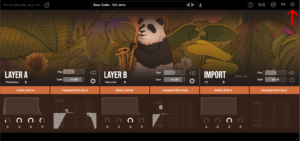
Once inside settings, scroll down on the right hand settings panel until you see “Sample Location:”
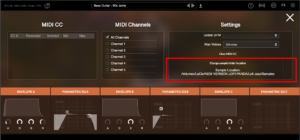
Confirm if this location is the location your samples folder is currently stored. Your samples folder should be unzipped and contain several .ch1 files inside. The location should point directly to that folder.
If the location is not pointing to the right location of your samples folder you can change it by clicking “Change sample folder location” then pointing to the right location
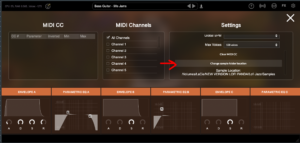
If you installed this folder on an external hard drive please make sure the hard drive is connected before opening the plugin. The plugin will not find the folder on the hard drive unless it is connected.
Samples Folder Not Found
This article assumes you have successfully installed Lofi Panda. However, after opening the program after a while you may receive the following message.
‘Sample Directory Can Not Be Found’ this means that Lofi Panda is not finding the ‘Lofi Panda Samples’ folder.
This issue is most likely due to the samples folder being moved. If you moved the ‘Lofi Panda Samples’ folder you need to redirect the plugin to it.
You can do this by going to the settings tab and clicking the ‘Change Samples Folder Location’ button

If you installed this folder on an external hard drive please make sure the hard drive is connected before opening the plugin. The plugin will not find the folder on the hard drive unless it is connected.


